
Windows · ChatGPT
Set up MemoryRaven
Download
Version 1.0.6 · 64-bit Windows
ChatGPT server address
https://memoryraven.com/mcp
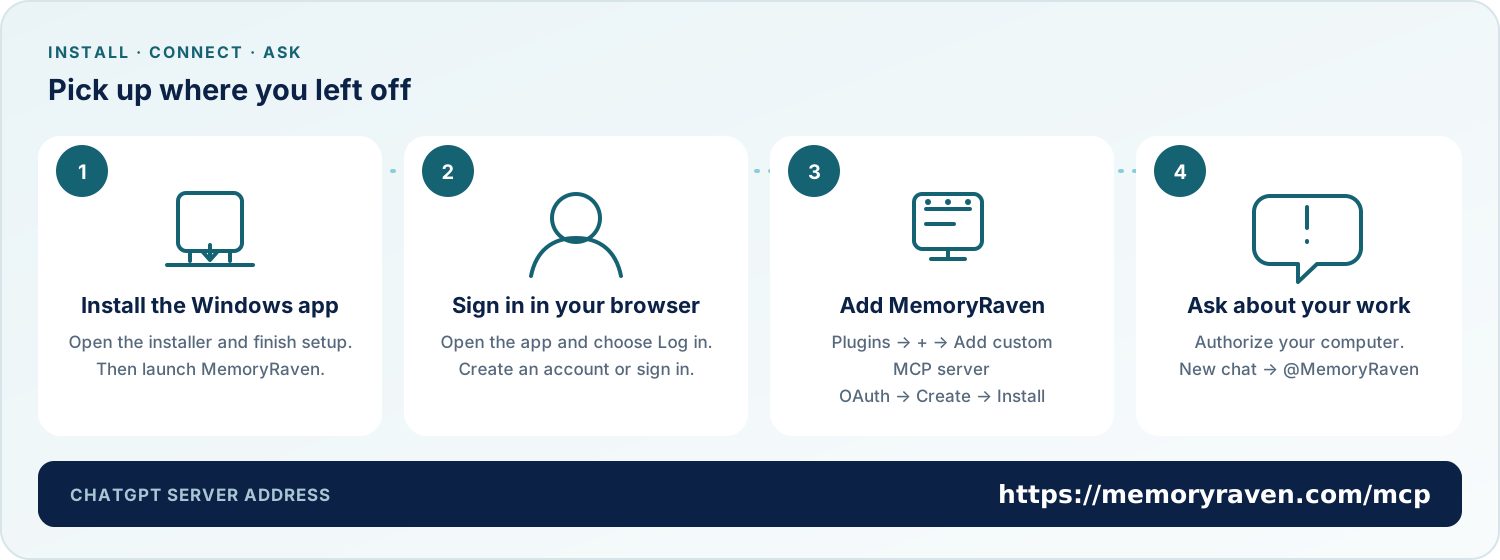
- Install MemoryRaven for Windows: download and open the installer, accept the licence, and finish setup.
- Open MemoryRaven and choose Log in. Create an account or sign in in your browser.
- In ChatGPT, open Plugins, select plus, then Add custom MCP server. Use https://memoryraven.com/mcp, choose OAuth, review the access details, and select Create.
- Install the plugin and authorize your computer in the browser. In a new chat, type @, select MemoryRaven, and ask what you were working on.
Using Claude or another MCP client?
In Claude, open Customize → Connectors → + Add → Add custom connector, then use the server address above and sign in in your browser. For Team or Enterprise, an organization owner adds the connector first. Other clients should use their remote MCP or custom connector option with browser sign-in.